You see a reminder to send a proposal. You are in the middle of a call, so you leave it for a few minutes. By the time the call ends, another task has your attention. The proposal is still waiting.
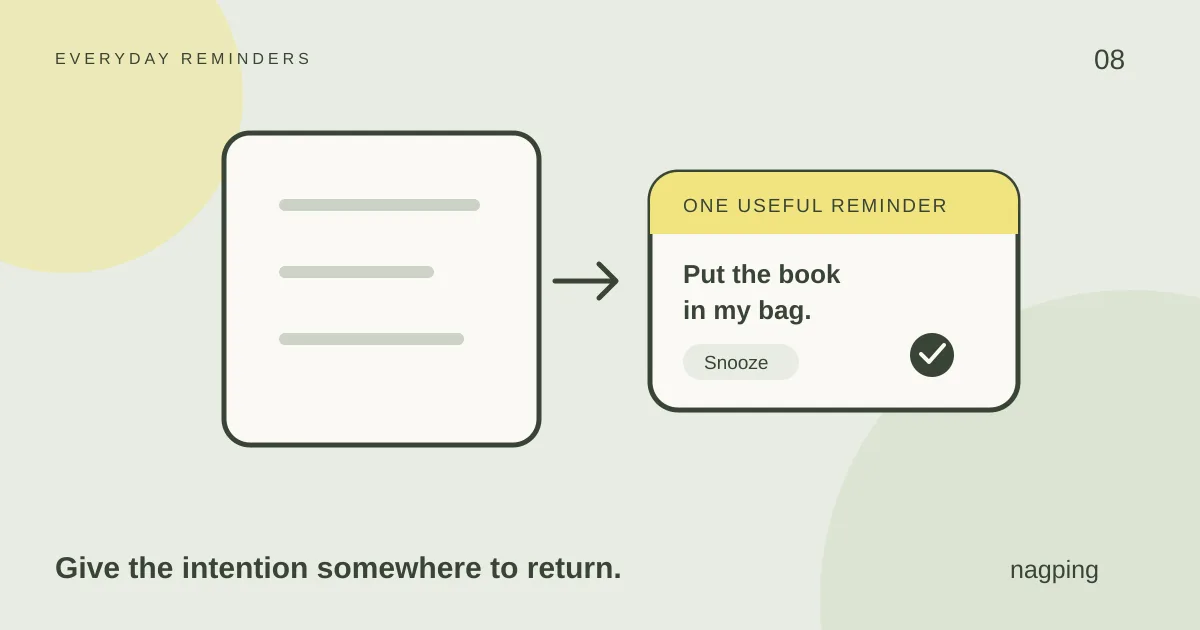
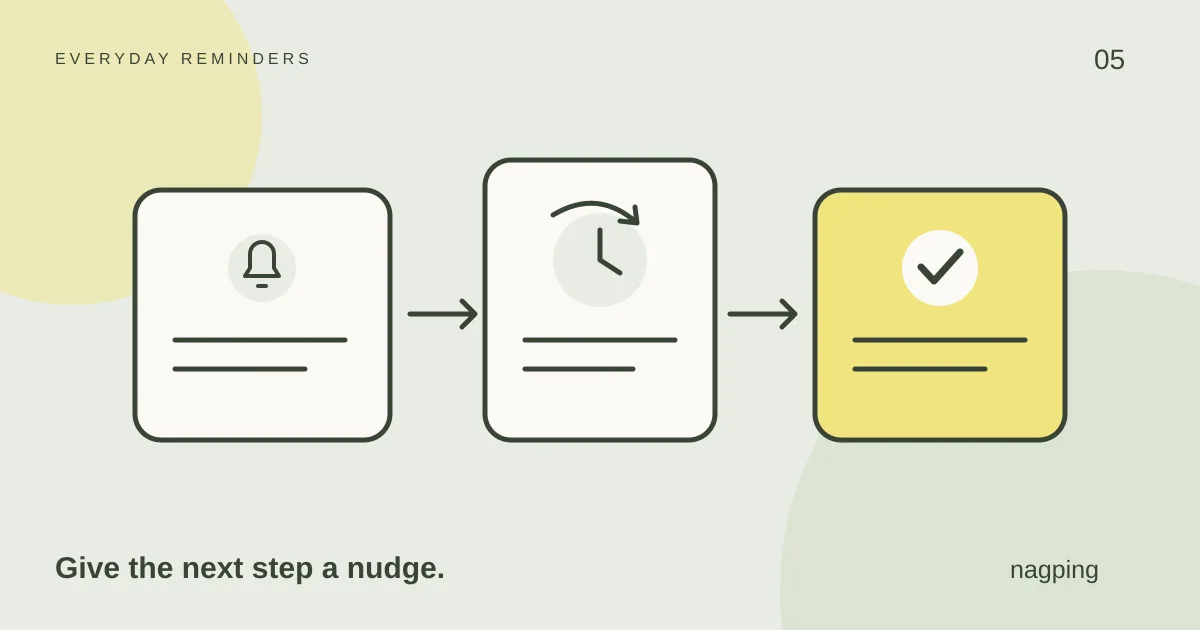
A reminder app that keeps reminding you can bring that unfinished task back into view. In nagping, repeat nudges let you choose how often a reminder returns. When it arrives, you can complete the task, snooze it briefly or reschedule it.
You can try a reminder in your browser without signing in. For browser alerts, keep nagping open and your device awake, and allow browser notifications. Browser throttling can delay alerts, so choose your setup with those conditions in mind.
What makes a reminder keep coming back?
A repeat nudge follows up on a reminder that is still unfinished. If your proposal is due at 3 pm, a nudge can bring it back to your attention after the first alert, according to the interval you choose.
Nagping offers a single alert or repeat nudges every 1, 5, 10, 15, 30 or 60 minutes. You set the interval for each reminder. A short errand and a document that needs an hour of work do not have to prompt you at the same pace.
Recurring reminders solve a separate problem. They schedule a task that happens again, such as submitting a timesheet every Friday. Repeat nudges follow up on the current unfinished task. A one-time reminder can use repeat nudges, and a recurring reminder can use them too.
Set up one reminder you can act on
Start with something small enough to finish. Here is a practical setup for that proposal.
- Name the next action. Open All reminders and create a reminder called “Send the revised proposal to Alex.” The wording tells you what to do without having to reconstruct the task.
- Choose a realistic date and time. Pick a moment when you expect to have the finished file and a few minutes to send it. Add a useful link or note to the description.
- Check the Repeat field. Leave this one on “Doesn’t repeat.” For a regular task, nagping currently offers daily, weekday and weekly recurrence.
- Choose a nudge interval. Under “Nudge me,” select how often another prompt would be useful. Every 15 minutes is one possible starting point; adjust it to the task.
- Review and save. Check the date, time, time zone and alert settings. If this is your first reminder, try a short test while nagping is open and your device is awake.
When the reminder arrives, send the proposal and mark it done. If you cannot act yet, give the task a specific next opportunity rather than relying on “later.” Our getting started guide explains the wider nagping workflow.
Use snooze for a short delay and reschedule for a new plan
Snooze fits a temporary interruption. You might need to finish a conversation or find a document. It postpones the alert so you can return to the task after that short gap.
Reschedule when your availability has changed. If the proposal needs another review tomorrow, move the reminder to a suitable time tomorrow. Repeatedly snoozing through an afternoon of meetings adds decisions you cannot act on.
If someone else must respond first, change the action as well as the time. “Check for Alex’s feedback” describes the next step more accurately than “Send the final proposal.”
Three everyday examples
- Arrange a repair: “Call the repair service to request a booking,” scheduled during its opening hours. Add the phone number to the note.
- Start a renewal: “Check which documents I need,” scheduled when you can read the requirements. A manageable first step is easier to act on than a whole project.
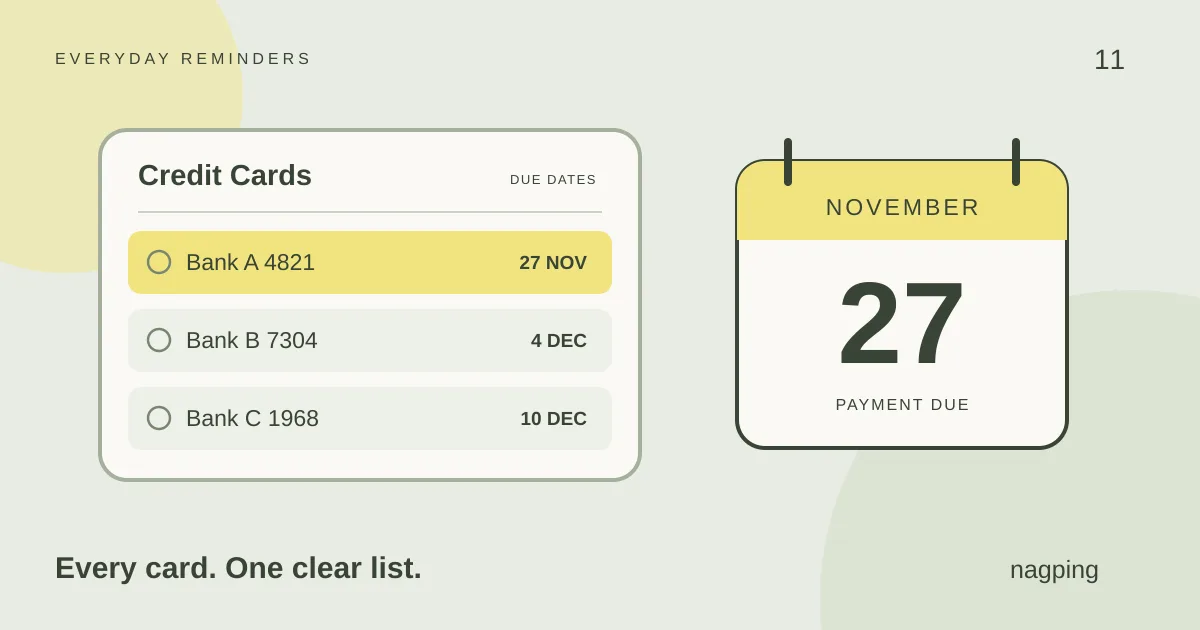
- Submit a timesheet: “Submit this week’s timesheet,” set weekly before the deadline, with repeat nudges while that occurrence remains unfinished.
For more routine examples, see our guide to recurring reminders online without signing up.
Keep follow-up alerts useful
Use repeat nudges where another prompt helps. Choose “Just once” when a single alert is enough, and use quiet hours to pause browser nudges during times you want uninterrupted.
If you keep postponing the same task, review it. Does it need a smaller first step, a different time or information you do not yet have? Changing the reminder can be more useful than making it more frequent.
A persistent reminder app with snooze should give you clear controls over those choices.
Questions about repeat reminders
Can nagping remind me every five minutes?
Yes. Choose “Every 5 minutes” in the reminder’s nudge setting. Delivery follows your settings, including quiet hours, and browser alerts depend on the app staying open and the device staying awake.
Does dismissing an alert complete the task?
No. Dismissing an alert and completing a task are different actions. Use Done when you have finished, or snooze or reschedule when you want to return to it.
Can I use a timer instead?
A timer measures a duration after you start it. A reminder brings back a task at a scheduled date and time. If the task needs attention at 3 pm, a reminder is the appropriate starting point.
Choose one thing you want to finish. Create a reminder in nagping, give it a workable time and select a nudge interval that fits your day.