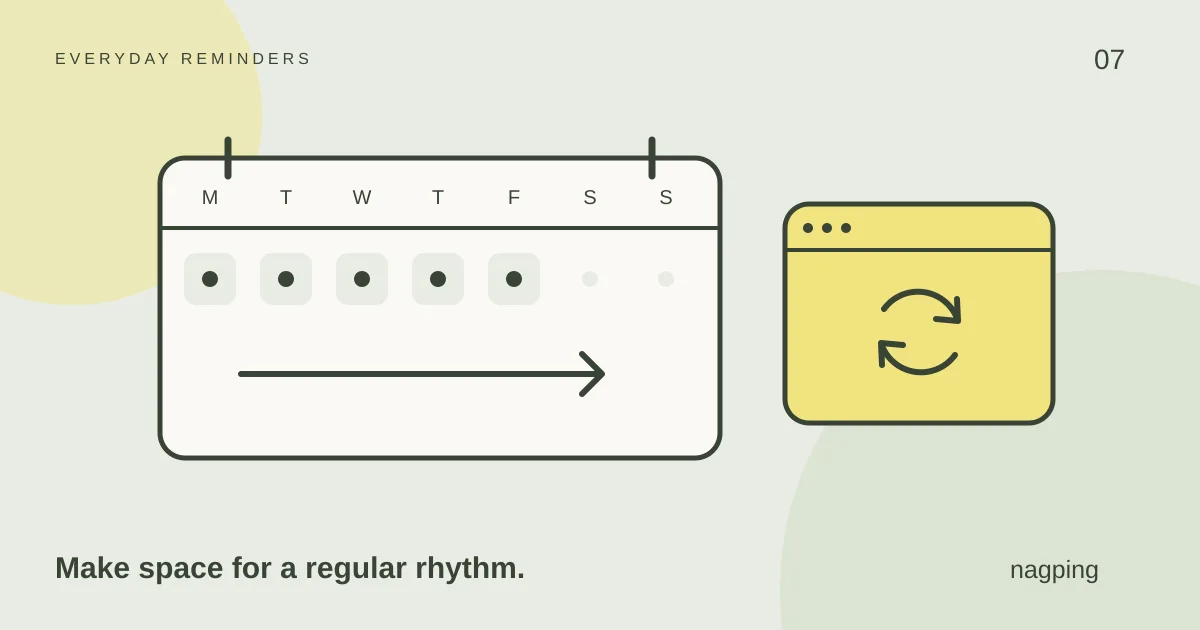
Some tasks come round often enough that entering them again becomes a task of its own. A weekday check-in, a weekly timesheet or a daily desk reset can each have a regular place in your schedule.
If you want online reminders without signing up, nagping lets you create recurring reminders as a guest in your browser. Choose a daily, weekday or weekly schedule, then decide whether each unfinished occurrence needs repeat nudges.
Guest mode is a useful way to try a routine before creating an account. Your guest items stay in that browser, and browser alerts need nagping open and your device awake.
Choose a schedule that matches the task
A recurring reminder is for something you intend to do again on a regular schedule. Nagping’s current web reminder form offers three recurring options:
- Every day: for a task that belongs on weekends as well as working days, such as spending a few minutes on a personal reading project.
- Every weekday: for a Monday-to-Friday routine, such as checking tomorrow’s work calendar before finishing for the day.
- Every week: for a task on a regular day, such as submitting a Friday timesheet or planning meals on Sunday.
Choose the first date and time to establish when the routine should start. Check your time zone, especially if you travel or work with people elsewhere.
Monthly and yearly recurrence are not options in the current web form. For an occasional renewal or another date outside these patterns, create a one-time reminder for the specific date you need. Do not substitute “Every week” for a monthly schedule: the dates will differ.
Set up a weekly reminder without an account
Here is an example using a Friday timesheet. The same steps work for another daily or weekly responsibility.
- Open the reminders view. Visit nagping’s web app and create a reminder in guest mode.
- Give it an action. Use “Submit this week’s timesheet” rather than simply “Timesheet.” Put a link to the form or a useful note in the description.
- Choose the first occurrence. Select a Friday time before the submission deadline when you expect to have the information ready.
- Set Repeat to “Every week.” This establishes the recurring task schedule.
- Choose “Nudge me” separately. Use “Just once” if a single prompt is enough, or choose a repeat interval when follow-up would help.
- Review, save and test notifications. Check the date, time and time zone. Keep the app open and your device awake for browser alerts.
When you finish the task, mark it done. Completing an occurrence moves the recurring reminder on to its next scheduled occurrence. Snooze gives you a short delay when you cannot act yet; it is not the same as completion.
Recurring schedules and repeat nudges work together
A weekly timesheet reminder answers “When does this task happen again?” A repeat nudge answers “When should I hear about this unfinished occurrence again?”
You might schedule the timesheet for Friday at 3 pm and select nudges every 15 minutes. The weekly schedule describes the routine; the nudge setting controls follow-up while the current reminder remains unfinished, subject to your alert settings and browser conditions.
If you only need help with a single task, you can leave recurrence off and still use repeat nudges. Our repeat reminder setup guide walks through that approach.
Build a routine around moments you can use
Start with one or two reminders and make each action specific:
- Weekday close: “Check tomorrow’s meetings and choose the first task,” near the end of your working day.
- Weekly reset: “Review unfinished reminders and plan next week,” at a time you can give the list your attention.
- Daily project time: “Open my reading notes and choose the next section,” when you normally have a quiet few minutes.
A reminder brings the routine to your attention. If you then want a defined period to work on it, use a timer or Focus session. Our guide to reminders, timers and countdowns explains the differences.
What happens to reminders created without signing up?
Guest items stay in the browser where you create them. They do not automatically appear in another browser, browser profile or device. Clearing that browser’s site data can remove locally stored items.
If you later want account sync, sign in and choose whether to import your guest items. Importing is a choice, so check that step instead of assuming your guest list has moved automatically. Sync also needs a connection.
Nagping provides an export in Settings if you want a copy of your records. Treat it as an export; do not assume it is an automatic restore facility. See the FAQ for guest storage and account details.
Check browser notifications before relying on the routine
Browsers require your permission to show notifications. Allowing notifications is one part of the setup. Nagping’s browser reminders also need the app open and the device awake, and background throttling may delay alerts.
Create a short, non-urgent test reminder and check it on the device you plan to use. If you have quiet hours enabled, remember that they pause browser nudges during that period.
If a routine keeps arriving at the wrong moment, change its time or make the next action smaller. A recurring schedule is useful when it fits the day you actually have.
Create your first recurring reminder in nagping. Start with one daily, weekday or weekly task and adjust the routine after you have tried it.