A reminder arrives while you are walking into a meeting. You have seen it, but you cannot act. What happens next is a useful way to judge a persistent reminder app.
The app should make it easy to ask for another prompt, choose a better time or record that the task is finished. If you are looking for a reminder app with snooze, those decisions matter as much as the first notification.
This guide explains the controls to look for and how they work in nagping, so you can decide whether its browser reminders fit your routine.
1. Separate repeat alerts from recurring tasks
“Repeat” can describe two different behaviours. A recurring reminder creates the next occurrence of a regular task. A repeat alert follows up on the occurrence that is already due.
For example, watering a plant every week is a recurring task. An extra prompt because you have not watered it yet is a repeat nudge. Check whether an app lets you choose those settings separately.
Nagping has a Repeat field for daily, weekday and weekly schedules, plus a “Nudge me” field for follow-up frequency. You can keep a task as a one-time reminder and still ask for repeat nudges.
Other apps use different names for similar controls. Due, for example, calls its repeated overdue notifications Auto Snooze. When evaluating an app, read what the setting does rather than relying on the label alone.
2. Look for a clear difference between snooze, reschedule and done
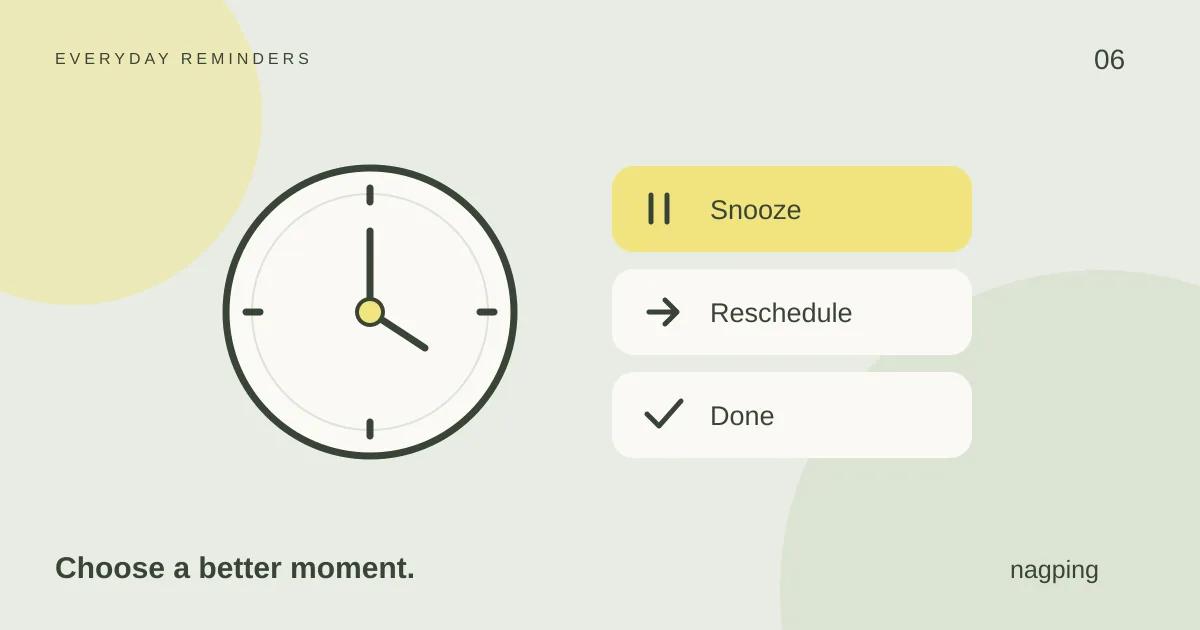
These actions answer different questions:
- Snooze: “Can you remind me again after a short delay?” Use it when the interruption is likely to end soon.
- Reschedule: “When is the next realistic opportunity?” Use it when the task needs a different place in your day.
- Done: “Have I finished this task?” Use it to record completion.
Suppose a reminder to book a repair arrives during a call. Snoozing may be enough if you will be free shortly. If the repair service has closed for the day, rescheduling to its next opening time gives you a more useful prompt.
Closing or dismissing a notification is another action again. In nagping, dismissing an alert does not mark the task done. That distinction matters when you later review what is still unfinished.
3. Choose a follow-up frequency you can live with
More frequent alerts are useful only when they create another reasonable chance to act. A reminder every minute may be distracting for a task you cannot start for an hour.
Nagping lets you choose “Just once” or nudges every 1, 5, 10, 15, 30 or 60 minutes. Set the interval on the individual reminder according to the task and your availability.
You can also change the default nudge interval for new reminders in Settings. Existing reminders retain their own intervals. If an older reminder feels too frequent, adjust that reminder directly.
Try one task before changing your whole list. Notice whether the next nudge arrives at a useful moment and whether you can respond without repeatedly postponing it.
4. Make room for quiet hours
Follow-up alerts should fit around focused work, rest and other commitments. Nagping’s quiet hours pause browser nudges during the period you choose.
Quiet hours change alert behaviour; they do not complete the underlying tasks. Review unfinished reminders when you return and move anything whose original time is no longer realistic.
If you repeatedly snooze the same task, inspect its wording too. “Prepare for the trip” contains several decisions. “List the documents I need to take” gives you one step you can finish.
5. Check how alerts reach your device
A feature list does not tell the whole story about notification delivery. A browser reminder and a native device alarm can behave differently when a tab is closed or a device is asleep.
For nagping’s web reminders, keep the app open and the device awake. Allow browser notifications if you want those alerts. Browsers can also throttle work in background tabs, which can delay browser reminders.
If you need an alert while the browser is closed, check the currently supported device options before relying on that workflow. Nagping’s device guide and notification FAQs explain its availability and requirements.
Try a small, realistic test
Before moving your reminders into any app, test the decisions you will make on an ordinary day:
- Create a non-urgent reminder a few minutes ahead and enable repeat nudges.
- Keep the app open and device awake, then check that the first alert reaches you.
- Snooze it once and check that the next prompt fits your expectation.
- Reschedule it to another time, then mark it done once you have completed the test task.
This helps you assess the controls in your actual browser and device setup. It does not establish that a closed tab or sleeping device will deliver future alerts.
Is nagping a good fit for your reminders?
Nagping is worth trying if you want browser reminders with separate recurrence and nudge settings, snooze and reschedule choices, and an option to start without an account. Guest reminders stay in the browser where you create them; see our guide to reminders without signing up for the storage and sync details.
For a complete first setup, follow our guide to a reminder app that keeps reminding you.
Try nagping with one everyday task and see whether its follow-up controls suit the way you work.